Visualization Backends
Pylinkage provides multiple visualization and export backends:
Matplotlib: Animations and static plots (requires
pylinkage[viz])Plotly: Interactive HTML visualizations (requires
pylinkage[plotly])drawsvg: Publication-quality SVG output (requires
pylinkage[svg])DXF: 2D CAD export for AutoCAD/CNC (requires
pylinkage[cad])STEP: 3D CAD interchange format (requires
pylinkage[cad])
This tutorial covers each backend with practical examples. Every example draws the same four-bar linkage:
from pylinkage.actuators import Crank
from pylinkage.components import Ground
from pylinkage.dyads import RRRDyad
from pylinkage.simulation import Linkage

A = Ground(0.0, 0.0, name="A")
D = Ground(3.0, 0.0, name="D")
crank = Crank(anchor=A, radius=1.0, angular_velocity=0.31, name="Crank")
output = RRRDyad(
    anchor1=crank.output, anchor2=D, distance1=3.0, distance2=2.0, name="Output",
)
linkage = Linkage([A, D, crank, output], name="Four-bar")

# Every backend accepts precomputed loci; computing them once saves a
# simulation per figure
loci = list(linkage.step())
print(f"{len(loci)} frames per turn of the crank")
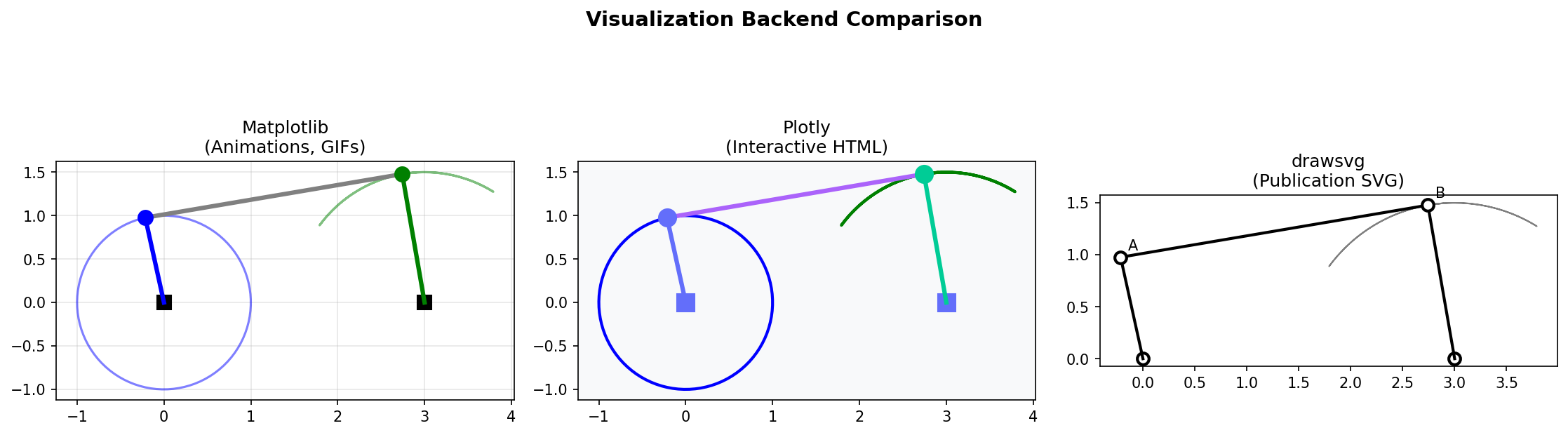
Comparison of the three visualization backends: Matplotlib (animations), Plotly (interactive HTML), and drawsvg (publication SVG).
Quick Reference
Backend |
Best For |
Output Formats |
|---|---|---|
Matplotlib |
Quick visualization, GIF animations |
PNG, GIF, MP4, interactive window |
Plotly |
Interactive exploration, web embedding |
HTML, PNG, PDF, SVG |
drawsvg |
Publications, precise vector graphics |
SVG, PNG, PDF |
DXF |
2D CAD, laser cutting, CNC |
DXF (AutoCAD compatible) |
STEP |
3D CAD, machining, 3D printing |
STEP/STP (ISO 10303) |
Matplotlib Backend
The default backend for quick visualization and animations.
Basic Visualization
show_linkage opens a window with the static diagram on the left and
the animation on the right, keeps it up for duration seconds, and
returns the FuncAnimation:
from pylinkage.visualizer import show_linkage

# Quick visualization (opens a matplotlib window for 5 seconds)
show_linkage(linkage)

# Longer, with more frames per turn, and a title
show_linkage(linkage, duration=8, fps=30, points=720, title="Four-bar")
Static Frame Visualization
plot_static_linkage draws on axes of your own: the mechanism at the
first frame, the joint trajectories, optional ghost outlines through the
cycle.
import matplotlib.pyplot as plt
from pylinkage.visualizer import plot_static_linkage

fig, ax = plt.subplots(figsize=(7, 5))
plot_static_linkage(
    linkage, ax, loci,
    show_legend=True,
    show_labels=True,
    n_ghosts=6,                  # outlines at six positions of the cycle
    title="Four-bar Linkage - Initial Position",
)

# Customize the plot like any matplotlib axes
ax.grid(True, alpha=0.3)
ax.set_aspect("equal")

plt.tight_layout()
plt.savefig("linkage_static.png", dpi=150)
plt.show()
Result: A static image showing the linkage in its initial configuration, with ghost outlines tracing the motion.
Animated GIF Output
plot_kinematic_linkage builds the animation on axes of your own;
matplotlib’s writers then save it in any format they support:
from pylinkage.visualizer import plot_kinematic_linkage

fig, ax = plt.subplots(figsize=(6, 4.5))
# A static frame first, so the axes extents cover the whole motion
plot_static_linkage(linkage, ax, loci, show_labels=False)
animation = plot_kinematic_linkage(linkage, fig, ax, loci, frames=len(loci), interval=40)

animation.save("four_bar_animation.gif", writer="pillow", fps=24)
plt.close(fig)
print("Animation saved to four_bar_animation.gif")
Result: An animated GIF showing the linkage cycling through its motion.
show_linkage(linkage, save=True) does the same in one call, writing
Kinematic <name>.mp4 through ffmpeg.
Showing Multiple Linkages
Compare different configurations side by side:
def make_fourbar(coupler, rocker, name):
    A = Ground(0.0, 0.0, name="A")
    D = Ground(3.0, 0.0, name="D")
    crank = Crank(anchor=A, radius=1.0, angular_velocity=0.31)
    output = RRRDyad(
        anchor1=crank.output, anchor2=D, distance1=coupler, distance2=rocker,
    )
    return Linkage([A, D, crank, output], name=name)

linkage1 = make_fourbar(3.0, 2.0, "Short rocker")
linkage2 = make_fourbar(3.0, 3.0, "Long rocker")

fig, (ax1, ax2) = plt.subplots(1, 2, figsize=(12, 5))
for lk, ax in ((linkage1, ax1), (linkage2, ax2)):
    plot_static_linkage(lk, ax, list(lk.step()), n_ghosts=4, title=lk.name)
    ax.set_aspect("equal")

plt.tight_layout()
plt.savefig("comparison.png", dpi=150)
plt.show()
Plotly Backend
Interactive HTML visualizations ideal for web embedding and exploration.
Basic Interactive Plot
from pylinkage.visualizer import plot_linkage_plotly

# Static interactive diagram: bars, joints, trajectories
fig = plot_linkage_plotly(
    linkage,
    loci,
    title="Four-bar",
    show_loci=True,          # joint trajectories
    show_labels=True,        # joint names
    show_dimensions=True,    # link lengths
    width=800,
    height=600,
)

# Display in notebook or browser
fig.show()

# Save to HTML
fig.write_html("interactive_linkage.html")
Result: An interactive HTML page where you can zoom and pan, hover over joints for coordinates, and toggle elements from the legend.
Animation with Slider
animate_linkage_plotly adds play/pause buttons and a frame slider:
from pylinkage.visualizer import animate_linkage_plotly

fig = animate_linkage_plotly(
    linkage,
    loci,
    title="Interactive Four-bar",
    frame_duration=50,       # ms per frame
)

fig.write_html("animated_linkage.html")
Result: HTML with a slider to scrub through the animation manually.
In a Jupyter notebook, interactive_linkage_plotly(linkage) returns an
ipywidgets box with the same controls bound to a live FigureWidget.
Customizing Plotly Appearance
The returned object is a plain plotly Figure: restyle it with the plotly
API.
fig = plot_linkage_plotly(linkage, loci, title="Styled Four-bar")

# Further customization using the plotly API
fig.update_layout(
    plot_bgcolor="white",
    paper_bgcolor="white",
    font=dict(family="Arial", size=14),
)
fig.update_xaxes(showgrid=True, gridwidth=1, gridcolor="lightgray")
fig.update_yaxes(showgrid=True, gridwidth=1, gridcolor="lightgray")
# Thicker bars: the link traces are the ones drawn with lines only
fig.update_traces(line_width=6, selector=dict(mode="lines"))

fig.show()
Embedding in Web Pages
fig = plot_linkage_plotly(linkage, loci)

# Get an HTML div for embedding
div_html = fig.to_html(include_plotlyjs="cdn", full_html=False)

# Write to file with custom wrapper
full_html = f"""
<!DOCTYPE html>
<html>
<head>
    <title>My Linkage</title>
    <style>
        body {{ font-family: Arial; max-width: 800px; margin: auto; }}
        h1 {{ text-align: center; }}
    </style>
</head>
<body>
    <h1>Four-bar Linkage Analysis</h1>
    {div_html}
    <p>Use the controls to explore the mechanism.</p>
</body>
</html>
"""

with open("embedded_linkage.html", "w") as f:
    f.write(full_html)
drawsvg Backend
Publication-quality vector graphics for papers and documentation.
Basic SVG Output
from pylinkage.visualizer import save_linkage_svg

# Save as SVG
save_linkage_svg(linkage, "linkage.svg", loci)
Result: A crisp SVG file that scales perfectly at any resolution.
Customizing SVG Style
from pylinkage.visualizer import plot_linkage_svg

drawing = plot_linkage_svg(
    linkage,
    loci,
    title="Four-bar",
    link_style="bone",         # "bar" (default), "bone" or "line"
    show_dimensions=True,      # link lengths along the bars
    show_loci=True,
    show_labels=True,
    scale=60,                  # pixels per unit
    padding=80,                # canvas margin in pixels
)
print(f"Canvas: {drawing.width} x {drawing.height} px")

# The drawsvg Drawing can be edited before saving
drawing.save_svg("styled_linkage.svg")
The same keyword arguments go through save_linkage_svg(linkage, path,
loci, **kwargs). Colors follow the joint type: ground supports, crank
pins, revolute pins and sliders each have their own symbol and color.
SVG for LaTeX
Rasterize with drawing.save_png() (needs drawsvg[raster]) or keep
the SVG and include it with \includesvg:
drawing = plot_linkage_svg(linkage, loci, show_labels=True, scale=40, padding=40)
drawing.save_svg("latex_figure.svg")

# Include in LaTeX:
# \begin{figure}
#     \centering
#     \includesvg{latex_figure}
#     \caption{Four-bar linkage mechanism}
# \end{figure}
CAD Export
Export linkages to industry-standard CAD formats for fabrication and 3D modeling.
Note
CAD export requires optional dependencies. Install with:
pip install pylinkage[cad]
This installs ezdxf (for DXF) and build123d (for STEP).
DXF Export (2D CAD)
Export to DXF format for AutoCAD, CNC machines, and laser cutters:
from pylinkage.visualizer import plot_linkage_dxf, save_linkage_dxf

# Save to DXF file
save_linkage_dxf(linkage, "linkage.dxf", loci)

# Or get the ezdxf Drawing object for further customization
doc = plot_linkage_dxf(linkage, loci)
print(f"Layers: {[layer.dxf.name for layer in doc.layers]}")
doc.saveas("custom_linkage.dxf")
DXF Layers: The exported DXF contains organized layers:
LINKS- Link bar geometry (white)JOINTS- Joint symbols (red)GROUND- Ground/fixed support symbols (gray)CRANKS- Crank/motor symbols (green)
Customizing DXF Output
Control dimensions and export a specific frame:
# Export frame 10 of the 20 with custom dimensions
save_linkage_dxf(
    linkage,
    "frame10.dxf",
    loci,
    frame_index=10,          # Export this frame (0 = first)
    link_width=0.5,          # Link bar width in world units
    joint_radius=0.2,        # Joint symbol radius
)
STEP Export (3D CAD)
Export to STEP format for 3D CAD applications (FreeCAD, SolidWorks, Fusion 360):
from pylinkage.visualizer import build_linkage_3d, save_linkage_step

# Save to STEP file (dimensions auto-scaled to fit linkage)
save_linkage_step(linkage, "linkage.step", loci)

# Or get the build123d Compound for further manipulation
model = build_linkage_3d(linkage, loci)
print(f"{len(list(model.solids()))} solids")
3D Geometry: The STEP export creates:
Stadium-shaped link bars (rounded rectangles extruded in Z)
Holes at joint locations for pin connections
Cylindrical pins at each joint
Ground symbols for fixed supports
Customizing STEP Dimensions
Use LinkProfile and JointProfile to control 3D geometry:
from pylinkage.visualizer import JointProfile, LinkProfile

# Define custom link cross-section
link_profile = LinkProfile(
    width=0.3,               # Link bar width (in the linkage's units)
    thickness=0.1,           # Extrusion depth in Z
    fillet_radius=0.02,      # Edge rounding (0 for sharp)
)

# Define custom joint pins
joint_profile = JointProfile(
    radius=0.08,             # Pin radius
    length=0.2,              # Pin length in Z
)

# Export with custom profiles
save_linkage_step(
    linkage,
    "machined_linkage.step",
    loci,
    link_profile=link_profile,
    joint_profile=joint_profile,
    frame_index=0,           # Which position to export
    include_pins=True,       # Include joint pins
)
Exporting Multiple Frames
Export different positions of the mechanism:
# Export key positions
for i, frame_idx in enumerate([0, 5, 10, 15]):
    save_linkage_step(
        linkage,
        f"linkage_position_{i}.step",
        loci,
        frame_index=frame_idx,
    )
    print(f"Exported frame {frame_idx} to linkage_position_{i}.step")
CAD Export Workflow
A typical workflow from simulation to fabrication:
from pathlib import Path

from pylinkage.visualizer import (
    LinkProfile,
    save_linkage_dxf,
    save_linkage_step,
    save_linkage_svg,
    show_linkage,
)

Path("documentation").mkdir(exist_ok=True)
Path("fabrication").mkdir(exist_ok=True)

# 1. Design and simulate
loci = list(linkage.step())

# 2. Quick visualization to verify
show_linkage(linkage, loci=loci)

# 3. Publication figure (SVG)
save_linkage_svg(linkage, "documentation/linkage.svg", loci, show_loci=True)

# 4. 2D CAD for laser cutting (DXF)
save_linkage_dxf(linkage, "fabrication/linkage_2d.dxf", loci)

# 5. 3D CAD for machining/printing (STEP)
profile = LinkProfile(width=0.3, thickness=0.1)
save_linkage_step(
    linkage,
    "fabrication/linkage_3d.step",
    loci,
    link_profile=profile,
)

print("Export complete! Files ready for fabrication.")
PSO Visualization
Visualize particle swarm optimization progress. The PSO plots consume a
history: one (iteration, swarm) pair per iteration, where a swarm is
the list of (score, dimensions, initial_positions) evaluated in it.
Record it by wrapping the fitness function.
import pylinkage as pl
from pylinkage.visualizer import (
    animate_dashboard,
    dashboard_layout,
    parallel_coordinates_plot,
)


@pl.kinematic_maximization
def stride(loci, **kwargs):
    """Horizontal travel of the output joint."""
    xs = [step[-1][0] for step in loci]
    return max(xs) - min(xs)


history = []


def recorded_stride(linkage, dims, pos):
    score = stride(linkage, dims, pos)
    history.append((score, list(dims), pos))
    return score


n_particles, n_iterations = 20, 15
bounds = pl.generate_bounds(linkage.get_constraints(), min_ratio=1.5, max_factor=1.5)
results = pl.particle_swarm_optimization(
    recorded_stride, linkage, bounds=bounds,
    n_particles=n_particles, iterations=n_iterations, verbose=False,
)

# Group the evaluations per iteration (the first swarm is the initial one)
swarms = [
    (i, history[i * n_particles:(i + 1) * n_particles])
    for i in range(len(history) // n_particles)
]
dim_names = ["crank radius", "coupler", "rocker"]
dim_types = ["length", "length", "length"]

# Parallel coordinates of the final swarm, colored by score
fig, ax = plt.subplots(figsize=(10, 5))
parallel_coordinates_plot(swarms[-1], dim_names, dim_types, bounds=bounds, ax=ax)
fig.savefig("pso_parallel_coordinates.png", dpi=150)

# Dashboard: score history, the swarm, and the best linkage
score_history = [max(agent[0] for agent in swarm) for _, swarm in swarms]
fig = dashboard_layout(linkage, swarms[-1], score_history, dim_names, dim_types, bounds=bounds)
fig.savefig("pso_dashboard.png", dpi=150)

# Animated dashboard over the iterations
animation = animate_dashboard(linkage, swarms, dim_names, dim_types, bounds=bounds, interval=300)
animation.save("pso_dashboard.gif", writer="pillow", fps=3)
The strider example (docs/examples/pso_visualization_demo.py) runs the
same plots on an eight-parameter walking mechanism.
Visualization with Kinematics
Show velocity vectors alongside the linkage:
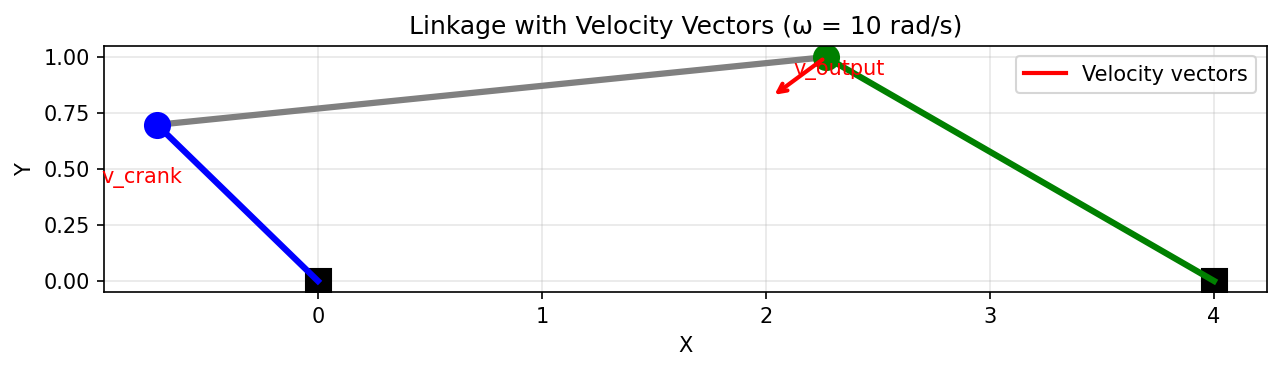
Linkage with velocity vectors shown at each joint, computed from the angular velocity of the input crank.
from pylinkage.visualizer import animate_kinematics, show_kinematics

# Set the crank's physical angular velocity (rad/s)
linkage.set_input_velocity(crank, omega=10.0)

# Show single frame with velocity vectors
fig = show_kinematics(
    linkage,
    frame_index=10,
    show_velocity=True,
    show_acceleration=True,
    velocity_scale=0.05,       # Scale factor for arrow length
)
fig.savefig("velocities.png")

# Animated with velocities
animate_kinematics(
    linkage,
    show_velocity=True,
    duration=2.0,
    save_path="velocity_animation.gif",
)
Plotly and drawsvg have velocity variants too:
plot_linkage_plotly_with_velocity(linkage, frame_index=10) and
save_linkage_svg_with_velocity(linkage, path, positions, velocities);
see Kinematics-Based Optimization.
Choosing the Right Backend
Use Matplotlib when:
You need quick visualization during development
You want animated GIFs for documentation
You’re working in Jupyter notebooks
You need PDF output for simple figures
Use Plotly when:
You want interactive exploration
You’re building web applications
You need to embed in HTML pages
Users need to zoom/pan/hover
Use drawsvg when:
You’re writing academic papers
You need precise vector graphics
You want to edit the output in Inkscape/Illustrator
You need consistent styling across figures
Use DXF when:
You need to import into AutoCAD or similar 2D CAD software
You’re preparing files for laser cutting or CNC machining
You need layered 2D technical drawings
You want to edit geometry in CAD software
Use STEP when:
You need to import into 3D CAD software (FreeCAD, SolidWorks, Fusion 360)
You’re preparing files for 3D printing or machining
You want to visualize the linkage as physical parts
You need to integrate with other 3D models
Example: Complete Visualization Workflow
from pylinkage.visualizer import (
    animate_linkage_plotly,
    plot_kinematic_linkage,
    plot_static_linkage,
    save_linkage_svg,
    show_linkage,
)

# Create an optimized linkage
A = Ground(0.0, 0.0, name="A")
D = Ground(3.0, 0.0, name="D")
crank = Crank(anchor=A, radius=1.0, angular_velocity=0.31, name="Crank")
output = RRRDyad(
    anchor1=crank.output, anchor2=D,
    distance1=2.5, distance2=1.5, name="Output",
)
linkage = Linkage([A, D, crank, output], name="Optimized Four-bar")
loci = list(linkage.step())

# 1. Quick check with Matplotlib
show_linkage(linkage, loci=loci)

# 2. Interactive exploration with Plotly
fig = animate_linkage_plotly(linkage, loci)
fig.write_html("explore.html")
print("Open explore.html in browser for interactive view")

# 3. Publication figure with drawsvg
save_linkage_svg(
    linkage,
    "figure1.svg",
    loci,
    show_loci=True,
    show_labels=True,
    link_style="line",
)
print("Publication figure saved to figure1.svg")

# 4. Animation for presentation
fig, ax = plt.subplots(figsize=(6, 4.5))
plot_static_linkage(linkage, ax, loci, show_labels=False)
animation = plot_kinematic_linkage(linkage, fig, ax, loci, frames=len(loci))
animation.save("presentation.gif", writer="pillow", fps=30)
plt.close(fig)
print("Animation saved to presentation.gif")
Next Steps
Getting Started - Basic linkage creation
Kinematics-Based Optimization - Velocity visualization
See
pylinkage.visualizerfor complete API reference